How to Find Your TrainingPeaks Bearer Token
A very simple, screenshot-supported guide for finding the TrainingPeaks bearer token from browser Developer Tools.
TrainingDojo needs your bearer token to upload workouts to your TrainingPeaks calendar. You do not need to find your athlete ID anymore. TrainingDojo detects it automatically from the token.
Signed-in users can also save a TrainingPeaks connection from Settings by pasting only theProduction_tpAuth cookie value. TrainingDojo stores that value encrypted and uses it to request short-lived bearer tokens automatically. The bearer-token steps below remain useful as a fallback.
This guide walks through the exact clicks. Just take it one step at a time.
Before You Start
Use a desktop or laptop browser. Chrome and Edge are the easiest. Safari and Firefox can work too, but the names and layout may look a little different.
You will also need to be logged in to TrainingPeaks in that same browser.
What You Are Looking For
Most TrainingPeaks requests include the bearer token TrainingDojo needs:
- Bearer token: a long text value that starts with
Bearer
Your bearer token works like a temporary password for your TrainingPeaks session. TrainingPeaks changes it periodically. When pasted manually, TrainingDojo stores it only in your browser and uses it to upload workouts to your calendar.
Step 1: Open TrainingPeaks
- Open app.trainingpeaks.com.
- Log in to your TrainingPeaks account.
- Go to your calendar or dashboard.
Leave TrainingPeaks open. The next steps all happen inside the same browser tab.
Step 2: Open Developer Tools
Developer Tools is a panel built into your browser. It lets you see the background requests that websites make while they load data.
- Right-click anywhere on the TrainingPeaks page.
- Click Inspect.
- A panel should open on the side or bottom of your browser.
You can also press F12 on Windows, or Option + Command + I on Mac.
Step 3: Click the Network Tab
At the top of the Developer Tools panel, look for tabs like Elements, Console, and Network. Click Network.
If you do not see it, the panel may be narrow. Click the >> menu and choose Network from there.
Step 4: Refresh TrainingPeaks
- Make sure the Network tab is still open.
- Refresh the TrainingPeaks page.
- Wait a few seconds while the list fills with requests.
The requests may look intimidating. You do not need most of them. You only need to click one request that was sent to TrainingPeaks.
Step 5: Find a TrainingPeaks Data Request
Click a request in the Network list that looks like it came from TrainingPeaks. Good requests often include words like athlete, calendar, workout, or fitness.
After you click a request, look for a panel with tabs such as Headers, Payload,Preview, and Response. Stay on Headers.
Step 6: Copy the Bearer Token
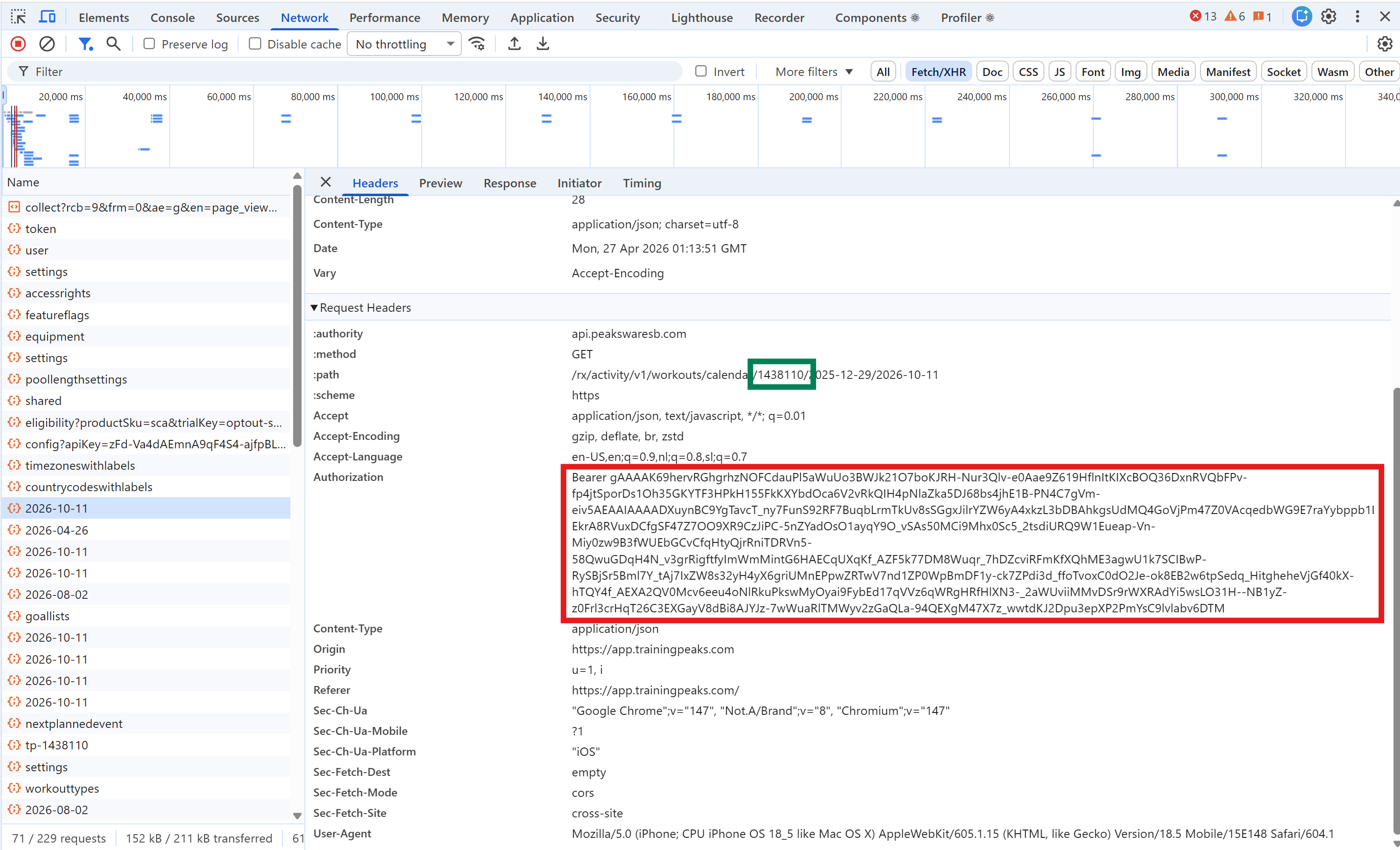
In the selected request, scroll through the Request Headers section until you find Authorization.
The value should look something like this:
Authorization: Bearer eyJhbGciOi...- Select everything after Authorization:.
- Include the word
Bearer. - Copy the full value.
- Paste it into TrainingDojo's bearer token field.
TrainingDojo accepts either the full value, including Bearer, or just the long token text after it.
If You Do Not See Authorization
Try these fixes:
- Click a different TrainingPeaks request in the Network list.
- Refresh the page again while the Network tab is open.
- Open your TrainingPeaks calendar, then click through a few days so more requests appear.
- Use the Network search or filter box and try
athlete,calendar, orworkout.
Static files like images, fonts, and JavaScript files usually will not have what you need. You are looking for a data request that loads your TrainingPeaks account information.
If TrainingDojo Says the Token Failed
Bearer tokens expire. If TrainingDojo says the token is invalid, go back to TrainingPeaks, refresh the page, and copy a fresh token from a new request.
Also check for common copy mistakes:
- The token usually starts with
Bearer. - If you include
Bearer, there should be one space after it. - Do not add quotes before or after the token.
- If you accidentally include
Authorization:, TrainingDojo will try to clean it up automatically.
Once you have the bearer token, return to TrainingDojo and continue your import. TrainingDojo will detect your athlete ID automatically and create the workouts on your TrainingPeaks calendar.